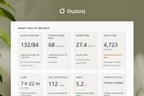
InBody scans provide valuable body composition measurements, helping physicians, health coaches, and wellness clinics monitor changes in muscle mass, body fat, and metabolic health over time.
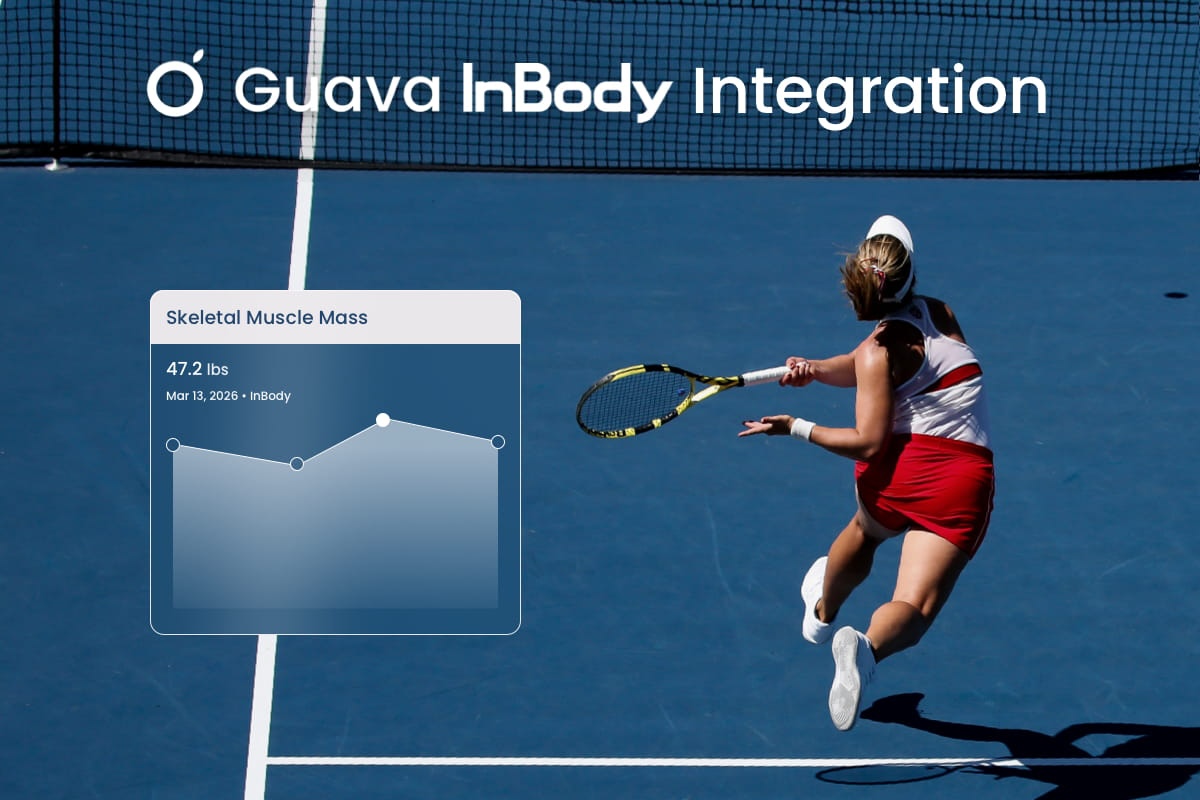
Guava integrates directly with InBody devices to automatically sync InBody results, track body composition trends, and present key results in a clear, patient-friendly dashboard. Clinicians and patients can visualize changes in body fat percentage, skeletal muscle mass, visceral fat, and other biomarkers alongside labs, wearable data, and patient health records.
This guide explains how to set up the Guava–InBody integration so you can track body composition results, visualize trends over time, and securely share InBody reports with patients through the Guava Provider Dashboard and patient app.
What You Can Do With the InBody Integration
- Automatically sync InBody scan results to the Guava app and Provider Dashboard
- Visualize and monitor muscle gain or fat loss across multiple visits
- Share body composition results with patients digitally
- Track body composition trends across scans from different sources, such as InBody, DEXA providers like DEXAFit, and other devices like SECA
- Correlate body composition changes with labs, nutrition, wearable activity, and other health data
How to Set Up the Integration between Guava and InBody
From InBody’s Side:
- Make sure you have a LookinBody web account. If you don’t yet, you can register here and set up your device by following these instructions.
- Submit an API application form and enter Guava Health as the Integration name.
- Wait for the InBody team to approve your application.
Adding the InBody Integration to Guava
Once your application has been approved, you’re ready to add the integration to Guava!
- From your provider home page, head to the Integrations tab and select InBody.
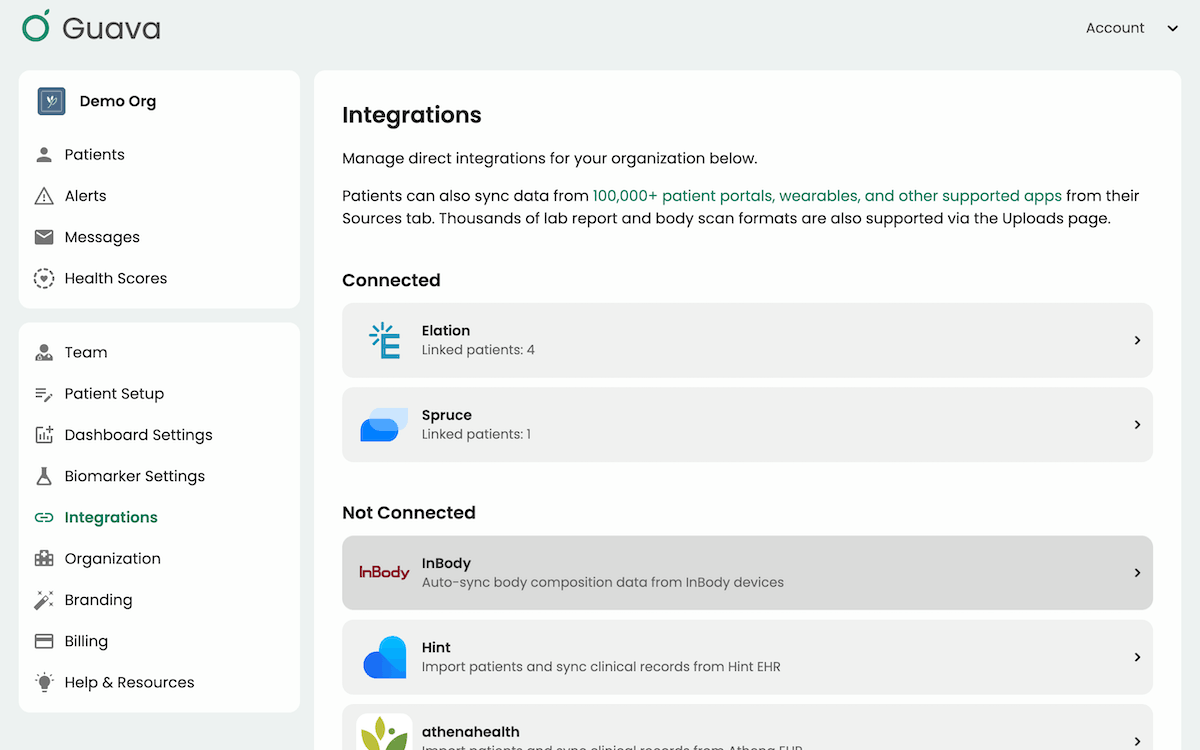 Guava’s Integrations tab
 - In a different tab, log into InBody’s API site.
- Follow the InBody Setup instructions within Guava. This will guide you through generating a new API key, adding an IP whitelist for security, entering webhook details, and testing the integration.
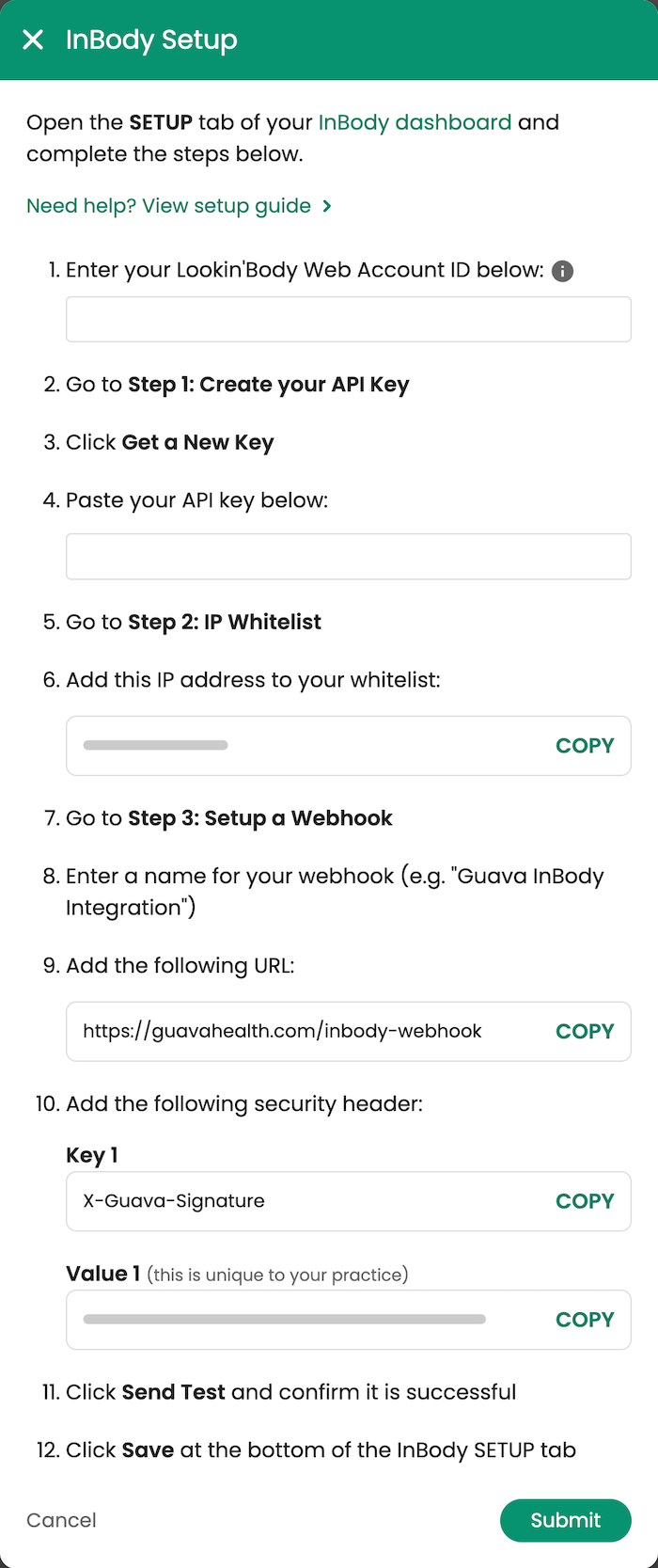 Instructions for setting up the Guava-InBody Integration within Guava
Once the integration is added, Guava will automatically search for matches between your InBody patients and Guava patients. You can also manually link a patient’s InBody account by going to the InBody integration in Guava and selecting Manage. You can add patients individually via their phone number or InBody ID.
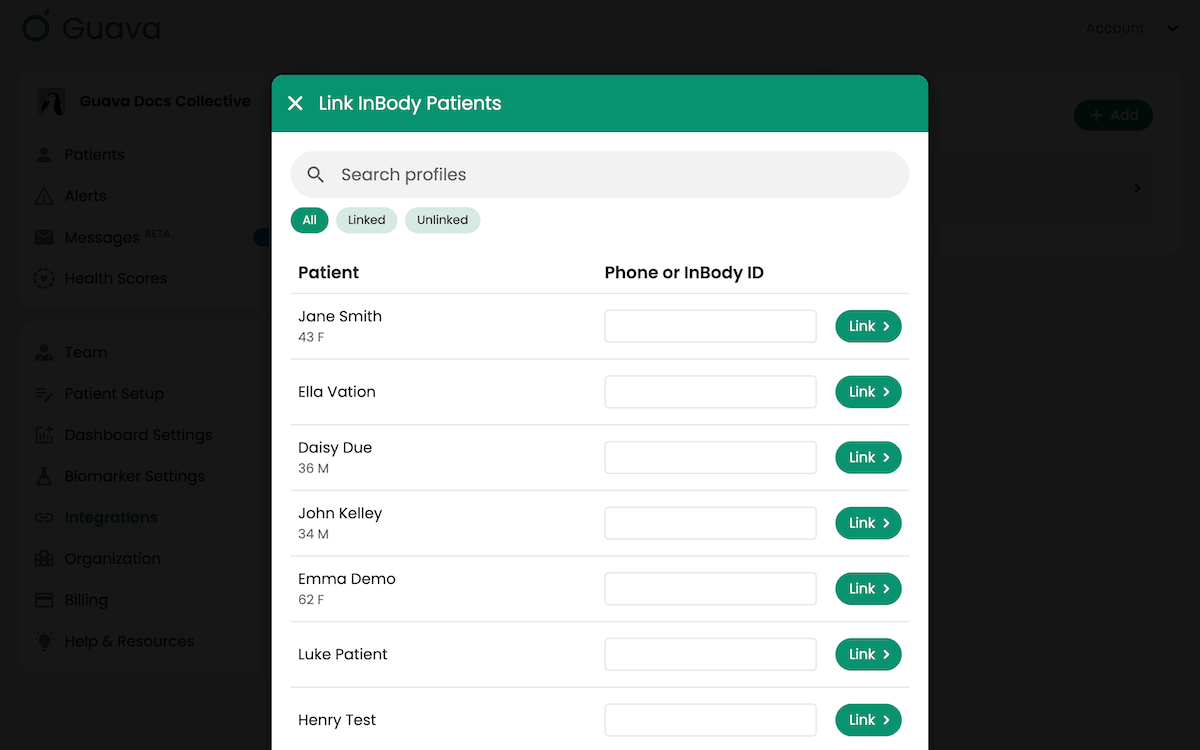
After an Inbody scan, new results should automatically be synced within minutes for any linked patients.
Visualizing Body Composition Data in Guava
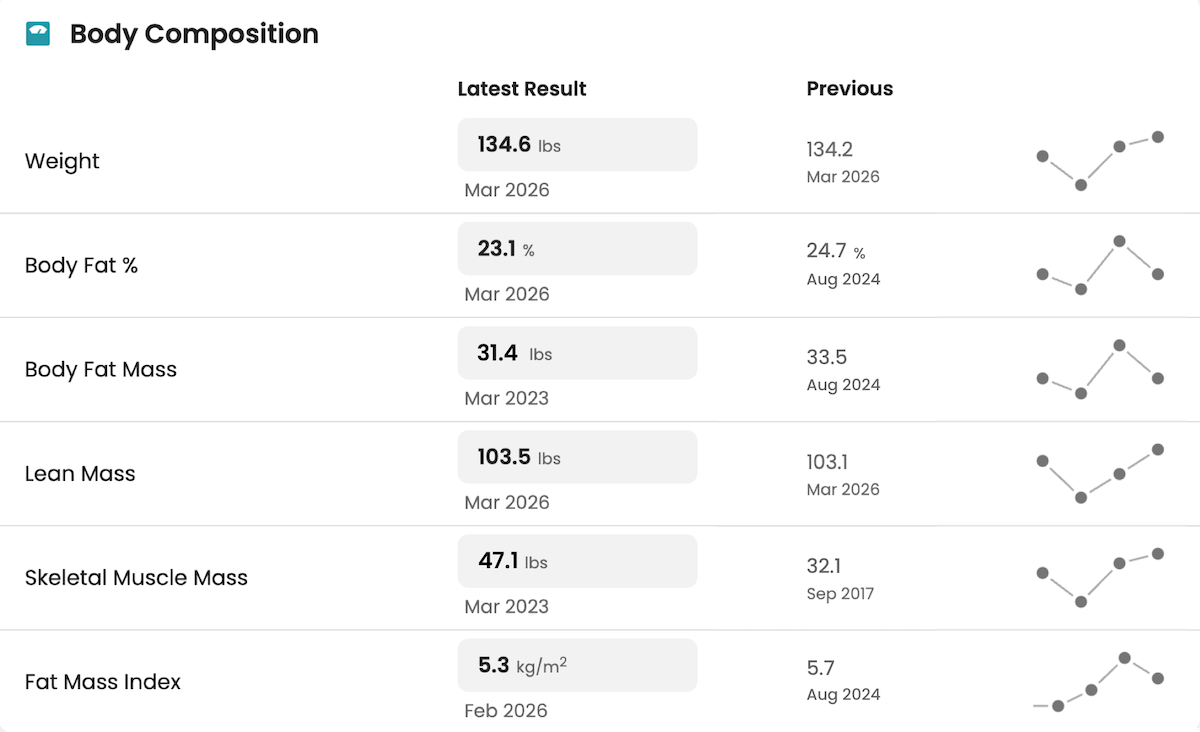
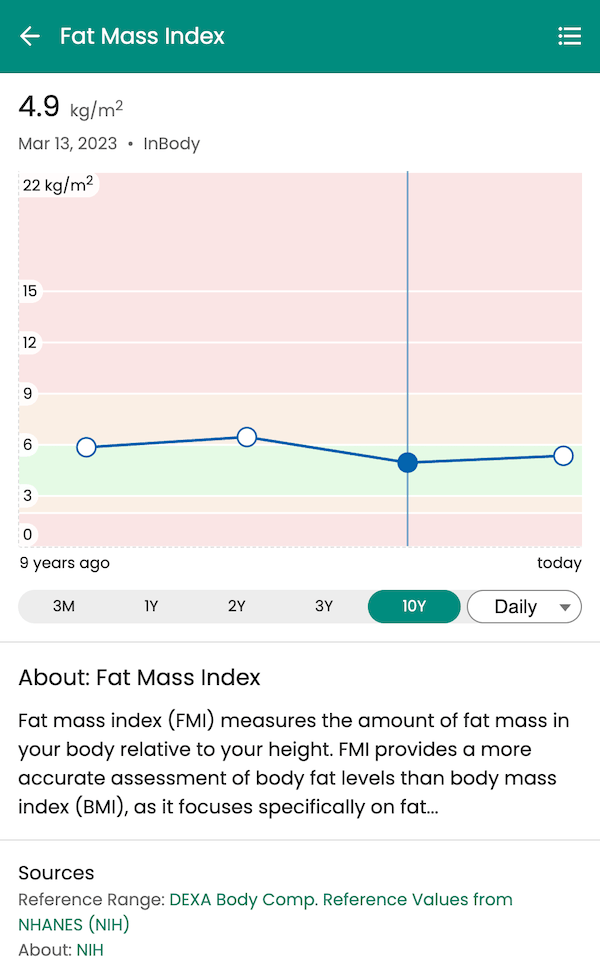
In the Provider Dashboard, you can visualize your patients’ body composition metrics over time, like skeletal muscle mass, body fat percentage, fat mass index, visceral fat, and more. This detailed body composition analysis is located alongside labs and other biomarker data in the Biomarkers tab, providing a unified view of patient progress.
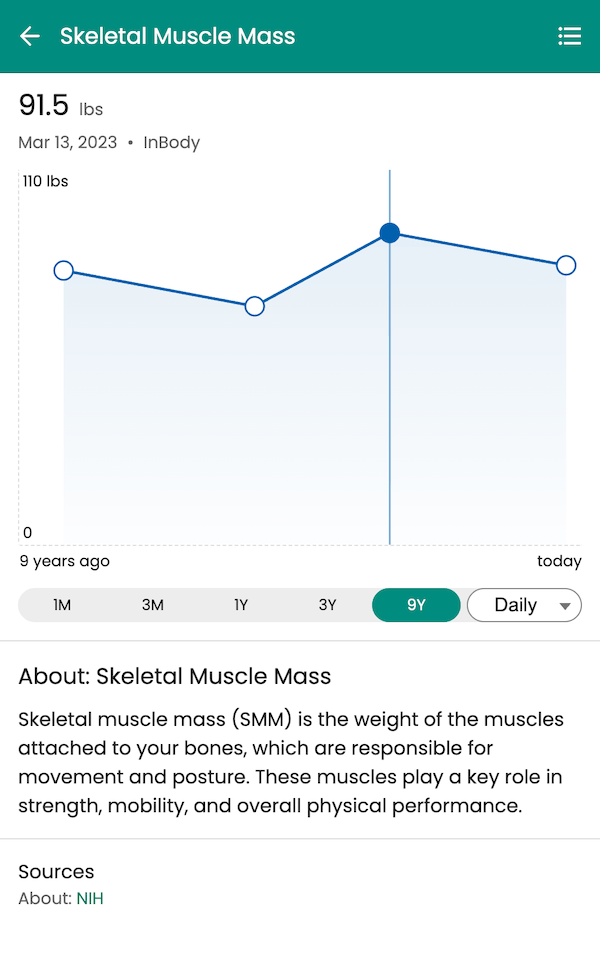
Learn more about how patient lab data is unified across sources in Guava’s Provider Dashboard.
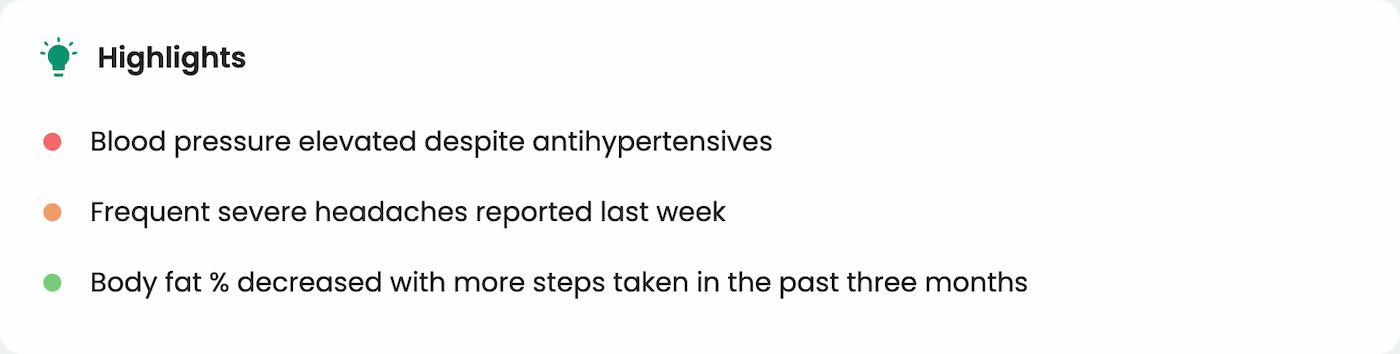
New InBody data synced in Guava adds to a holistic record of their health, allowing you to view body composition data within the context of their labs, diet, exercise, sleep, and more. You’ll see when new results are added via AI-generated highlights and in the Records tab, where you can dig deeper into specifics. Guava is enabled with an AI Assistant, allowing you to query data, create patient-facing summaries, and identify potential gaps in their care.
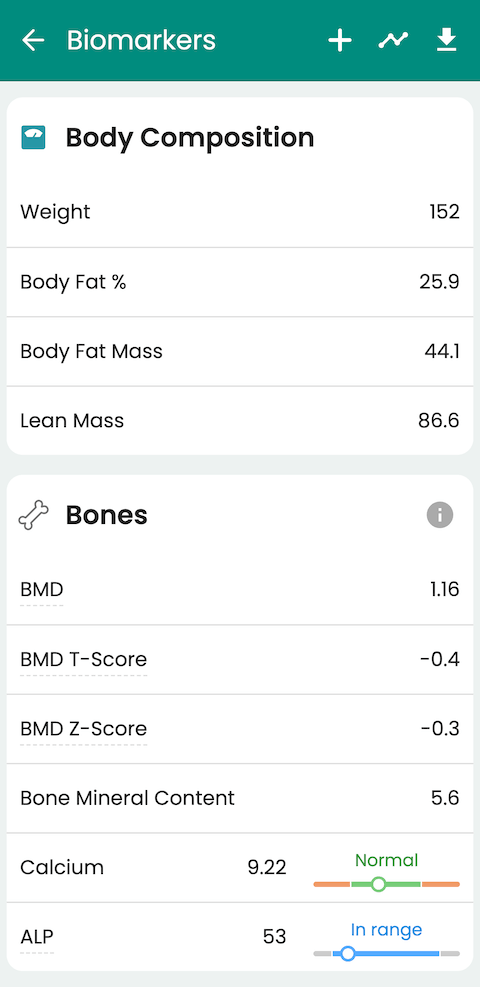
Patients can access their InBody results directly in the Guava app, giving them a clear view of how their body composition is changing over time. By sharing results through Guava, you’re also providing patients with a robust tool for staying in tune with their overall health.
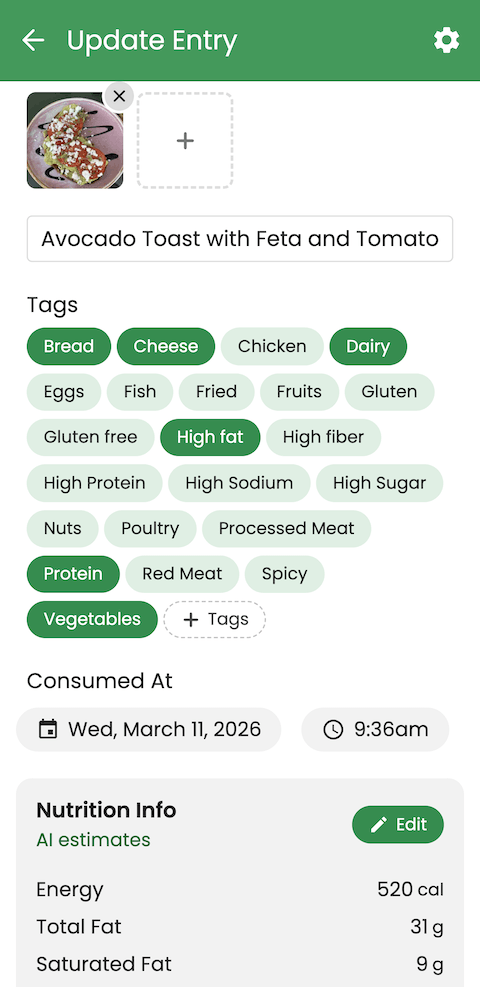
In Guava, patients can see their body composition alongside wearable activity, nutrition logs, lab results, and other health data. This added visibility helps patients better understand the factors influencing their progress. It also empowers them to take a more active role in managing their health between visits and extends the value of your clinic or program beyond the appointment itself.
Frequently Asked Questions
- What InBody devices are compatible with the Guava integration?
- Can my patients add results from other (non-InBody) body composition scans?
- Can I combine patient lab results with InBody data in Guava?
- What data types can I view in Guava besides my patients' body composition data?
- How can I securely share InBody results directly with my patients?
- Which body composition metrics from InBody are visible in Guava?
- Can multiple providers at my clinic access the same InBody data in Guava?
- How often does InBody data sync to Guava?
- What should I do if a patient's InBody results aren't showing up in Guava?
- Can I view historical InBody scan results for a patient, or only new scans after the integration is set up?
- Is patient InBody data stored securely in Guava? Is it HIPAA compliant?
What InBody devices are compatible with the Guava integration?
The Guava integration is designed to be compatible with all InBody devices that connect to the LookinBody web service. You can refer to your device documentation to confirm its compatibility with the web API.
Can my patients add results from other (non-InBody) body composition scans?
While Guava has a direct integration specific to InBody devices, patients and providers can also upload reports from sources like DEXA scans, bioelectrical impedance analysis (BIA) reports, the seca Medical Body Composition Analyzer (mBCA) and other clinical body composition tests and medical records. Guava uses AI to automatically parse and organize the information from record uploads, making it easily searchable across your patients' comprehensive health history.
Can I combine patient lab results with InBody data in Guava?
Yes. Guava is built to unify health data. You can view InBody results alongside lab data, visit summaries, conditions, and other biomarkers within the Provider Dashboard, offering a more holistic view of patient health.
What data types can I view in Guava besides my patients' body composition data?
Guava provides a comprehensive health dashboard for both patients and their providers. You can view a patient's complete medical history from various facilities, lab results, wearable data (like activity and sleep), other tracking apps, and patient-reported symptoms and lifestyle information like nutrition and habits.
How can I securely share InBody results directly with my patients?
Once a patient is linked, their InBody results automatically sync to their personal Guava app after each scan. This process is secure and allows patients to access their body composition report and trends directly from their phone.
Which body composition metrics from InBody are visible in Guava?
Body composition metrics from InBody sync directly with Guava, allowing you to visualize results like weight, body fat percent, body fat mass, lean mass, skeletal muscle mass, and visceral fat.
Can multiple providers at my clinic access the same InBody data in Guava?
Yes. All authorized providers within the same clinic can access the integrated InBody data for your patient population, facilitating collaborative care.
How often does InBody data sync to Guava?
Data syncing is nearly instant. After a linked patient has results from an InBody scan, the results should appear in both the Provider Dashboard and the patient's app within a few minutes.
What should I do if a patient's InBody results aren't showing up in Guava?
First, confirm the patient is correctly linked in the InBody integration settings within Guava. Check that the scan was performed on a device connected to your LookinBody web account. If the issue persists, contact Guava support for assistance.
Can I view historical InBody scan results for a patient, or only new scans after the integration is set up?
The integration can pull historical InBody scan results that are stored in your LookinBody web account, providing a complete timeline of a patient's body composition changes.
Is patient InBody data stored securely in Guava? Is it HIPAA compliant?
Yes, Guava is HIPAA compliant. We take privacy and security seriously and understand the importance of keeping your and your patients’ data safe. For that reason, we do not sell data, nor will we ever share data without your or your patient’s permission.
All data stored in Guava, including InBody results, is secured and encrypted using industry-standard encryption algorithms. Among other security measures, data is also safeguarded from unauthorized access and tampering, and Guava utilizes modern cloud technologies built for HIPAA compliance.