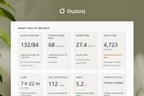
Guava integrates directly with Cerbo to pull patient labs, records, and clinical data into a unified provider dashboard and patient-facing app. Instead of asking patients to log into a separate portal to review their labs, providers can extend the value of their existing Cerbo setup with longitudinal trend charts, AI-generated summaries, and a health record that combines Cerbo data with wearables, patient-logged information, records from outside sources, and a premium patient experience.
This guide walks through what the Guava-Cerbo integration does, how to set it up, and how data shows up once it's connected.
What You Can Do With the Guava-Cerbo Integration
- Automatically sync patient labs and clinical records from Cerbo into Guava
- Visualize lab trends over time instead of reviewing single-point values in a chart
- Give patients a modern, mobile-first view of their Cerbo data through the Guava app
- Layer Cerbo records alongside wearable data, patient-logged symptoms, and uploaded documents from outside EHRs
- Get automatically generated highlights of what’s changed between visits, like new labs, symptoms, or emerging trends
- Use Guava's AI Assistant to query patient data, draft summaries, and flag potential gaps in care
- Keep your existing Cerbo workflow in place. Guava adds a patient-facing layer on top rather than replacing anything in your charting process
How to Set Up the Integration
- Log into Cerbo and go to Admin > Manage > Integrations.
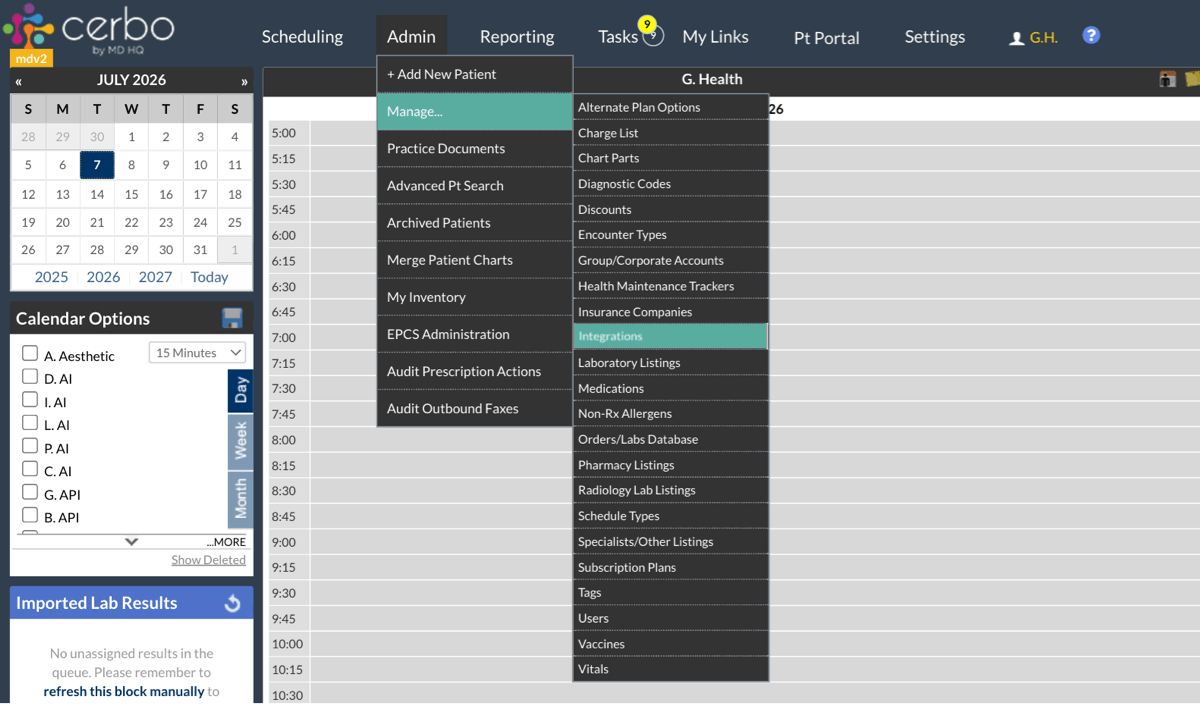
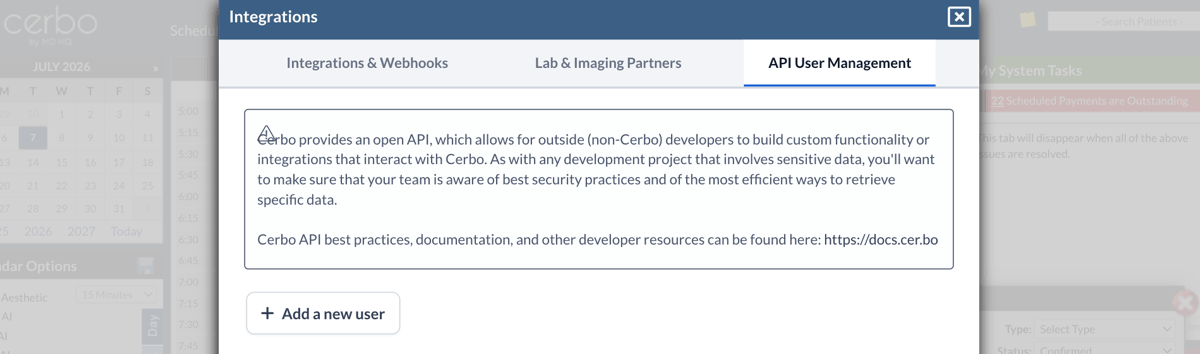
- Click the API User Management tab, then click Add a new user.
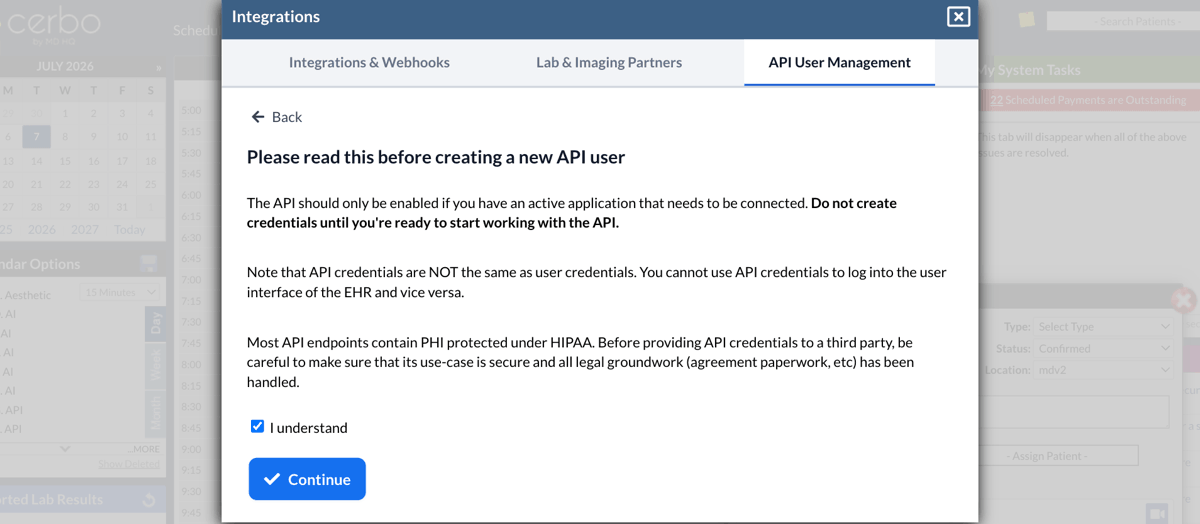
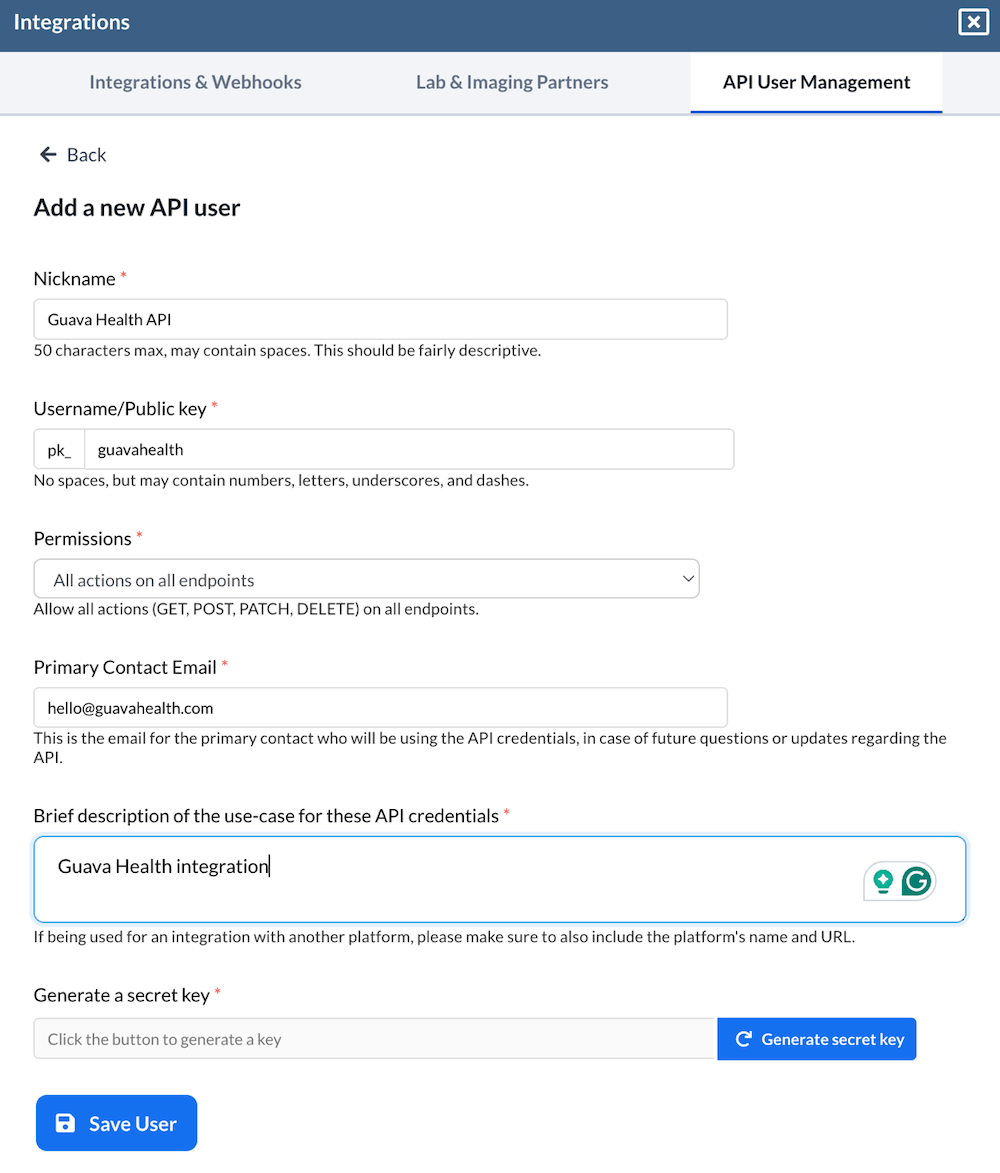
- Enter the following:
- Nickname: Guava Health API
- Username: guavahealth
- Permissions: All actions on all endpoints
- Primary Contact Email: [email protected]
- Brief description: Guava Health integration
- Press Generate secret key, then copy this key.
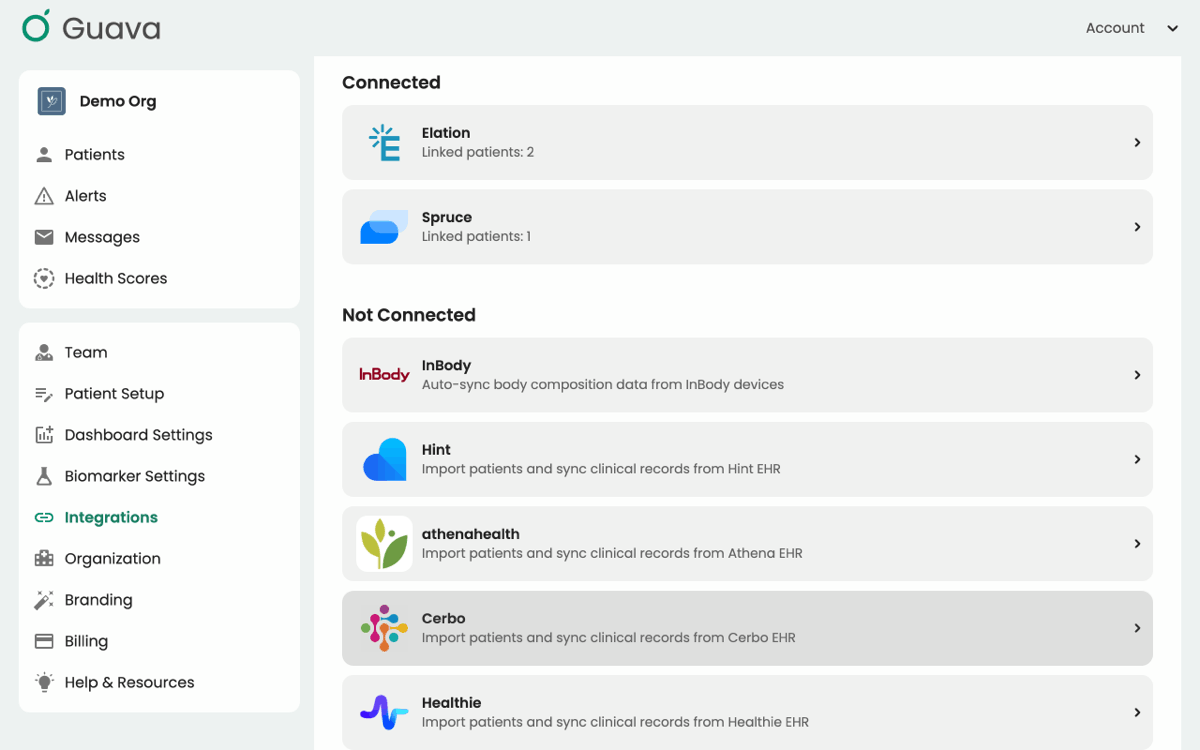
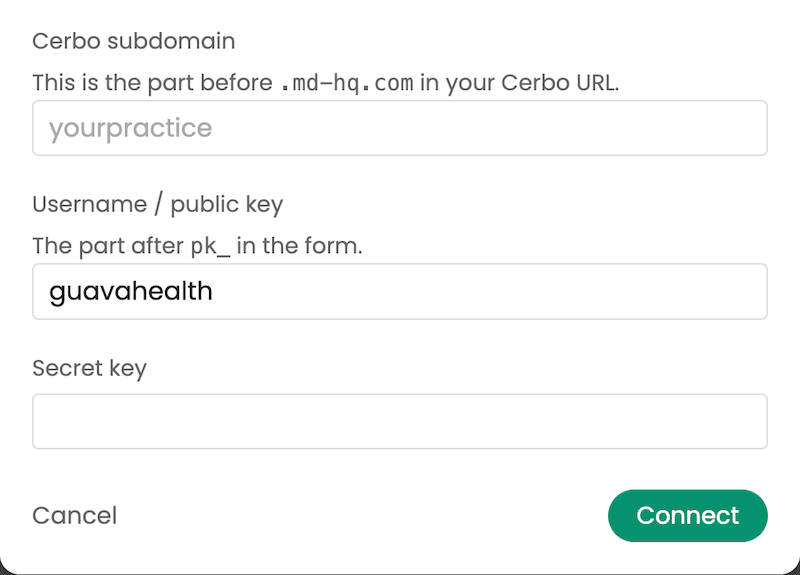
- Go to your Guava Provider Dashboard, select the Integrations tab, and select Cerbo.
- Copy and paste your Cerbo subdomain into Guava. This is the part before '.md-hq.com' in your Cerbo URL. Don’t include 'https://'.

- Paste the secret key into the form.
- Go back to your Cerbo screen, then press Save User.
- On Guava’s side, press Connect. If you see an error, reach out to us for help.
New labs and records are automatically synced from Cerbo to Guava going forward, so there's no manual re-entry or repeated syncing required.
Visualizing Cerbo Data in Guava
Once connected, patient data from Cerbo automatically populates in your patients’ profiles. Cerbo data sits alongside labs and records from any other connected source. Rather than reviewing a static PDF or a single lab value, providers can see trends over time, spot patterns across visits, and compare results against reference ranges built for a preventive, longevity-focused practice.
Dashboard Tab
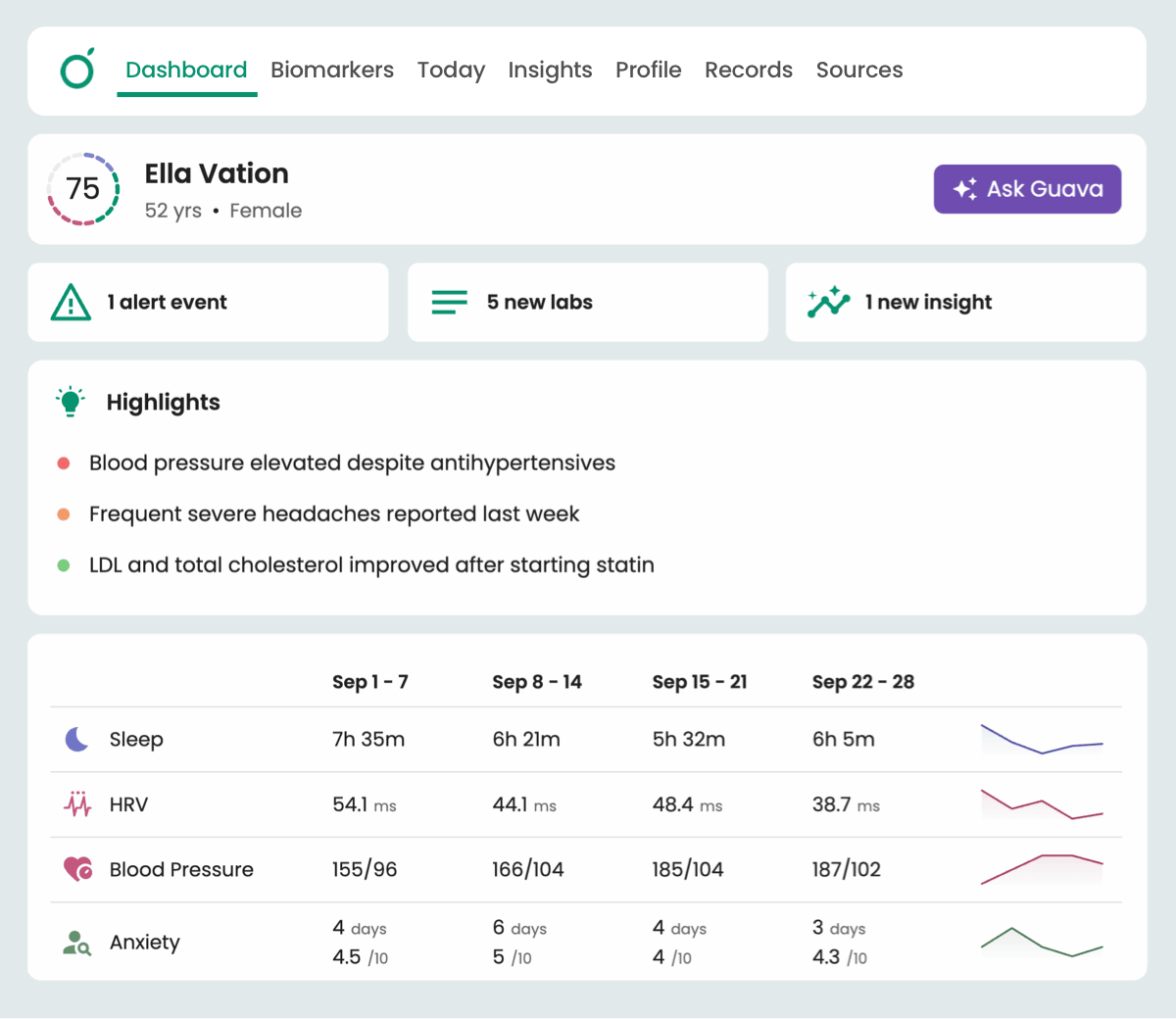
In the Dashboard tab, new data from Cerbo and other sources surface through Guava's AI-generated highlights, which flag what's changed since a patient's last visit. From there, you can use the AI Assistant to pull a quick summary, check for gaps in care, or prepare talking points ahead of an appointment.
Biomarkers Tab
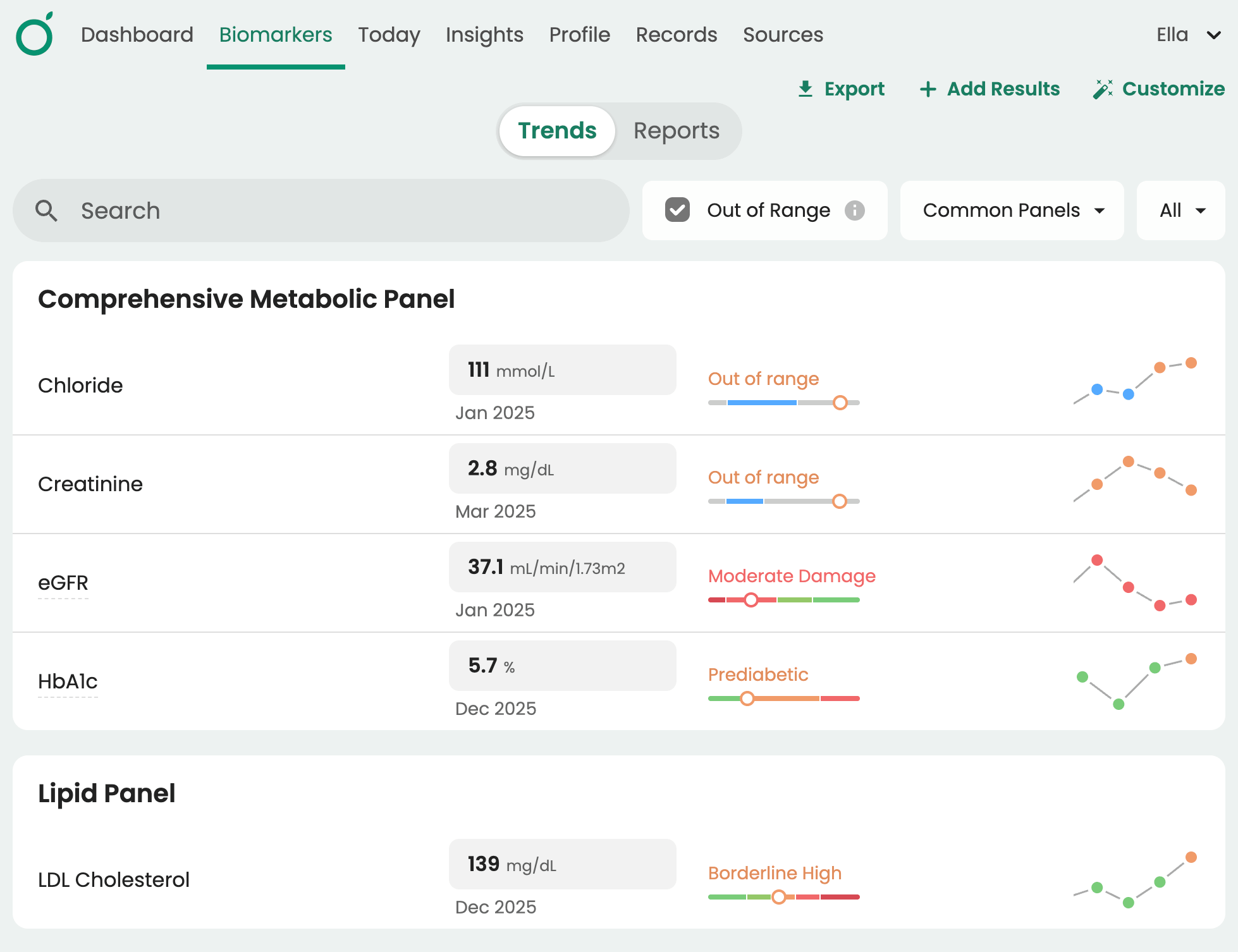
The Biomarkers tab is where you’ll find lab data synced from Cerbo, EHRs your patient has connected, and document uploads. Lab values across sources are normalized and graphed longitudinally so you can compare biomarkers over time. You can organize biomarker groups for your practice and define custom reference ranges and descriptions for patients here as well.
Profile Tab
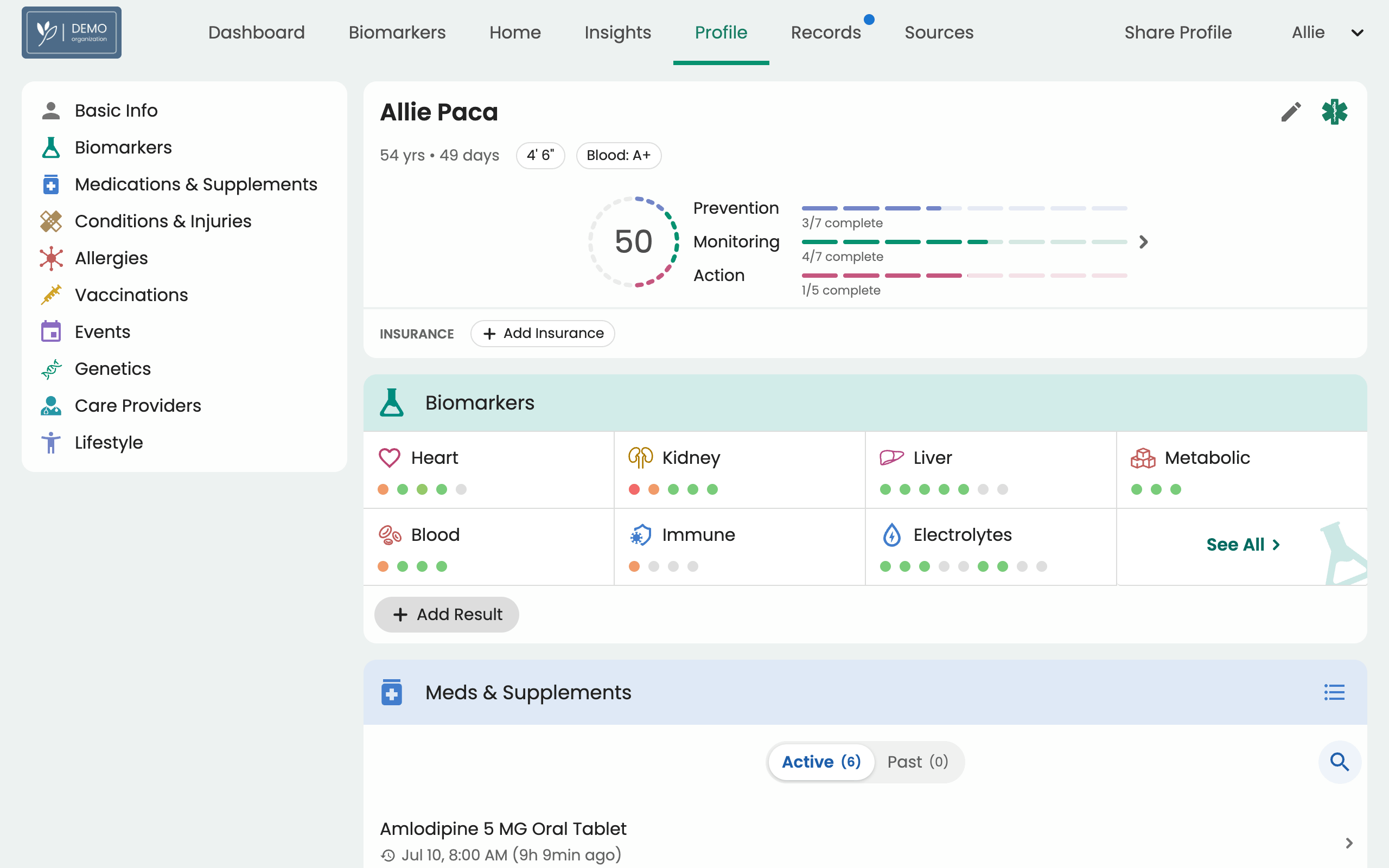
The Profile tab is where you can easily find your patients’ structured health information, like medication history, conditions and injuries, allergies, vaccinations, family history, care providers, and more. This information is automatically filled out from your patients’ records in Guava.
Records Tab
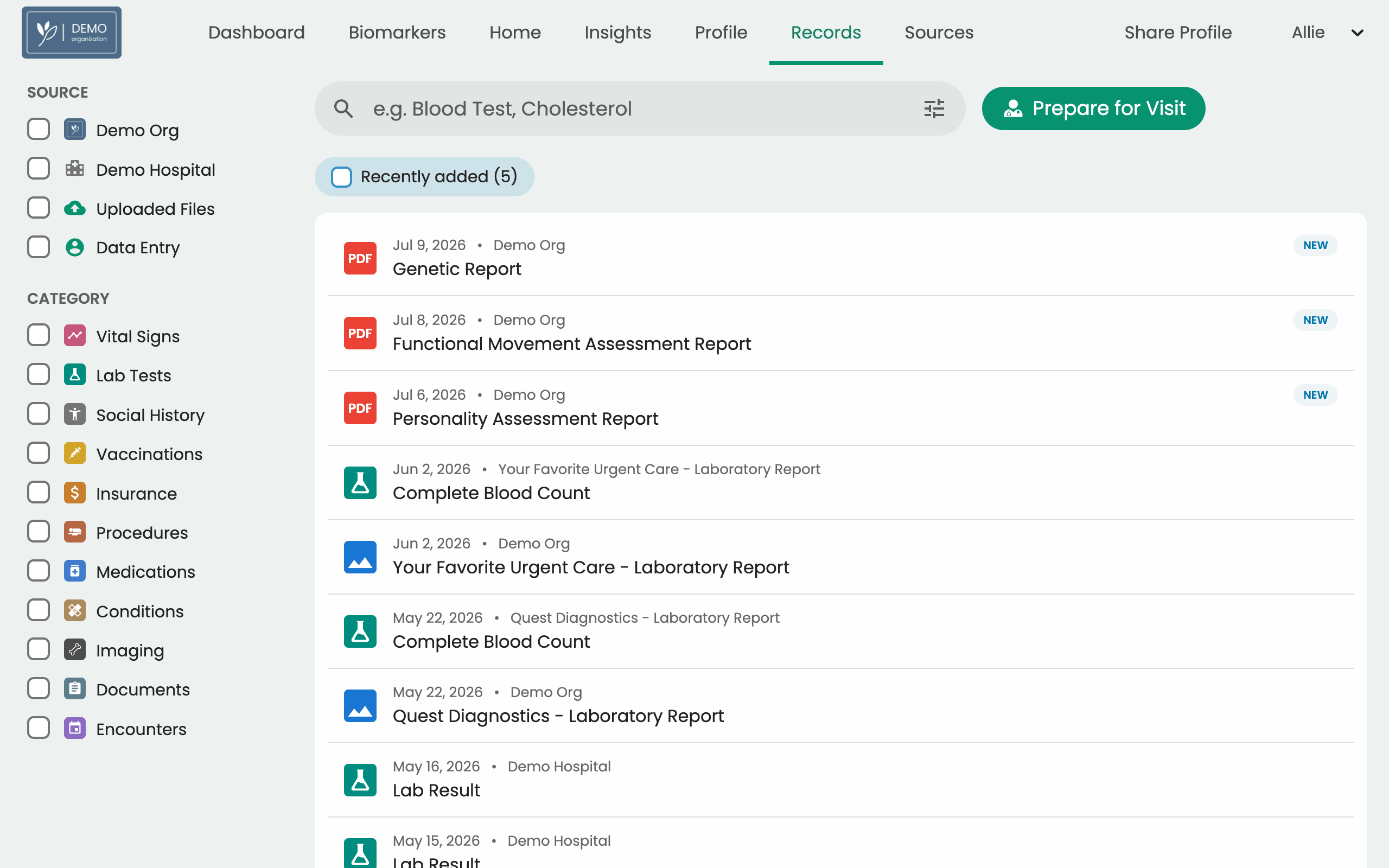
The Records tab is where you’ll find information organized by source, whether that be synced from Cerbo, a patient portal, or a document upload. This data is parsed by AI, making it all searchable and filterable, so you can easily find what you’re looking for.
The Patient Experience
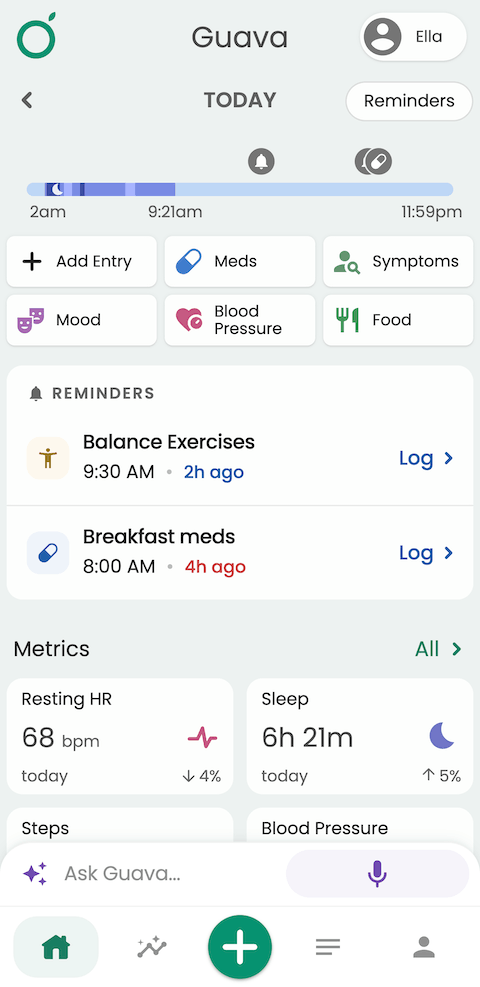


On the patient side, Cerbo records sync directly into the Guava app allowing them to see their labs alongside wearable activity, nutrition logs, and other health data in the same structured format. This gives them a fuller picture of their health between visits and a reason to stay engaged with the practice beyond the appointment itself.
Frequently Asked Questions
Can I combine Cerbo data with records from other EHRs?
Yes. If your practice uses Cerbo alongside another system, or if patients bring records from outside providers, Guava unifies all of it in one dashboard rather than keeping each source siloed.
Can my patients upload records that didn't come from Cerbo?
Yes. Patients and providers can upload PDFs and images of labs, visit notes, or other documents. Guava uses AI to parse and organize these, so they're searchable alongside Cerbo data.
How often does Cerbo data sync to Guava?
Once connected, Guava syncs on a regular schedule so records stay current without manual action.
Is patient data from Cerbo stored securely in Guava?
Yes. Guava is HIPAA compliant. Data is encrypted using industry-standard practices, and Guava does not sell patient data or share it without the provider's or patient's permission. Read more on our privacy and security page.
What should I do if a patient's Cerbo records aren't showing up in Guava?
First, confirm the patient is correctly linked in the Cerbo integration settings within Guava. If the issue persists, contact Guava support by using the Help & Feedback button at the bottom of your Dashboard for help troubleshooting the connection, or reach out to [email protected].