

By making Guava a core part of how patients interact with your practice, you can substantially improve their overall experience. Guava brings a consumer-grade ecosystem to healthcare, putting labs, medical records, symptoms, and daily health metrics at your patients' fingertips in one secure location. As patients grow accustomed to this continuity and visibility, your practice becomes more embedded in their day-to-day health management, which can make them more likely to stay engaged over time.
This guide will walk you through a few actionable, practical strategies to effectively onboard your patients to Guava. This will ensure a smooth transition for your practice and a higher adoption rate across your patient panel.
Proactively Onboard Your Patients
Once your patients have been invited, the most effective way to encourage them to use Guava is to introduce it to them directly. A recommendation from a trusted healthcare professional can play an important role in whether patients choose to engage.
Mention Guava during appointments.
Introduce it as a new patient portal or platform for messaging, viewing labs, and tracking daily health metrics. You can also mention that they should look out for an invitation from you in their email.
Here are a few natural conversation openers to get you started.
Tip: Your admin team can also be a big help here. Ask them to send out invites and remind patients about their Guava status during check-in and appointment scheduling.
Demonstrate its value with a quick, focused demo.
Show patients Guava on your screen using Ella Vation’s demo profile to illustrate how it can support their care.
Keep in mind that you do not have to give them a full feature walkthrough.
Instead, you can tailor what you show to the patient you’re speaking with. If they’re unlikely to log symptoms, prioritize passive data like wearables and labs; if symptoms are important to them, highlight a feature like the body heat map. You don’t need to cover everything–just what’s most useful to them right now. You can always expand their use of Guava over time.
Here’s a list of key features you can highlight with your patients to introduce them to Guava.
Introduce Guava in your newsletter.
If your practice has a newsletter, it’s a great way to introduce Guava to your entire patient panel at once. You can use the example below as a starting point, or adapt it to fit your practice’s use case:
Specify action items.
Ask patients to start with one or two concrete actions, like connecting a wearable or importing records from another provider. Pair each ask with a clear reason, for example:
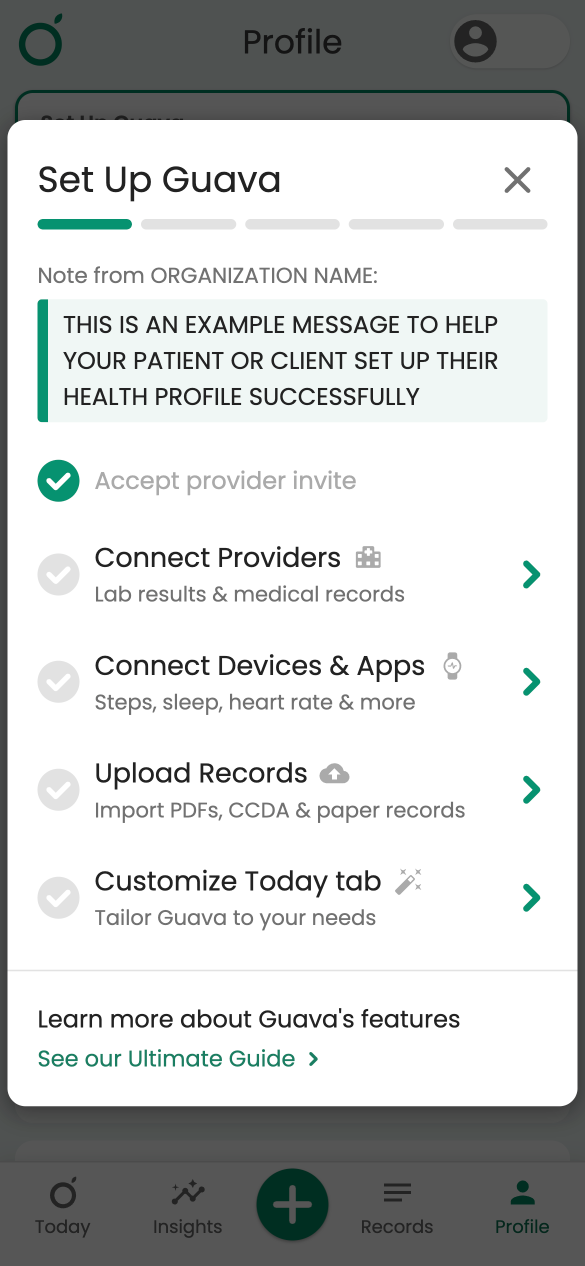
You can specify onboarding action items for patients in the Provider Dashboard as well, so they see a quick to-do list when they first sign up. To do this, go to Patient Setup > Profile Setup > Edit. You can also write a custom message to your patients here.
Share anecdotal evidence.
If you’ve already had success with other patients using Guava, share a quick story of how it improved their experience or care. If you use the Guava app yourself, sharing personal anecdotes can be helpful too.
Use the ‘remind all’ button.
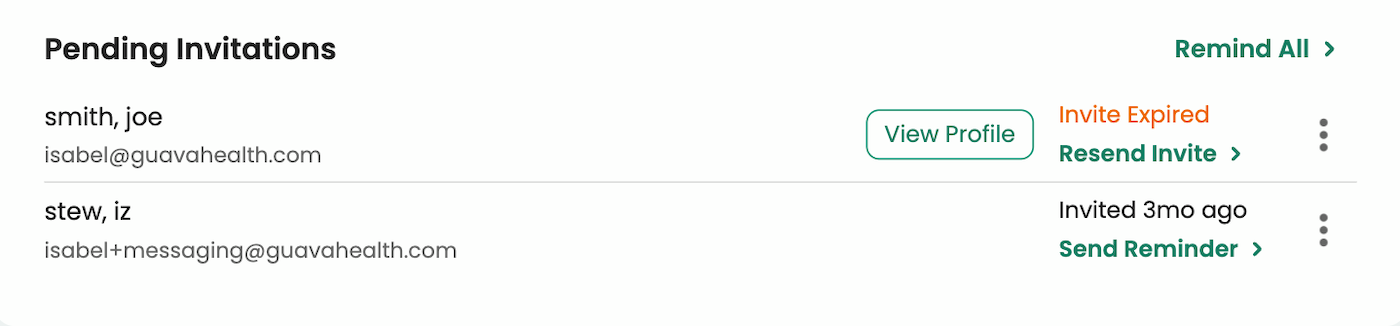
If you’ve invited patients and they haven’t accepted the invite yet, you can click the ‘remind all’ button. In the Patients tab, change your view to All patients, scroll down to Pending Invitations, and select Remind All.
If your organization has a bulk invite link, you can send it to them directly via text or email. Keep in mind that this is a public-facing link, so anyone who receives it can create a Guava profile under your organization. (Be careful who you share it with!) If you want this copyable link, reach out to the Guava team, and we’ll create one for your organization. Once it’s created, you can find it under Bulk Invite Link in the Patient Setup tab.
Leverage appointment reminders.
If your practice sends appointment reminder texts or emails, add a one-line mention of Guava with your practice’s sign-up link. Since patients are already engaging with that communication, it's an easy way to nudge sign-ups before they arrive.
You can get your practice’s link by going to Patient Setup and copying the Bulk Invite Link.
Build Guava into Your Clinic’s Workflow
For Guava to stick as a new tool, it needs to be made a part of your clinic's and patients' routines. By integrating Guava into a few existing processes and places where patients already look for information, you can automate their onboarding.
Here are a few ways to do this:
Add a "Patient Portal" or “Guava Login” button to your website.
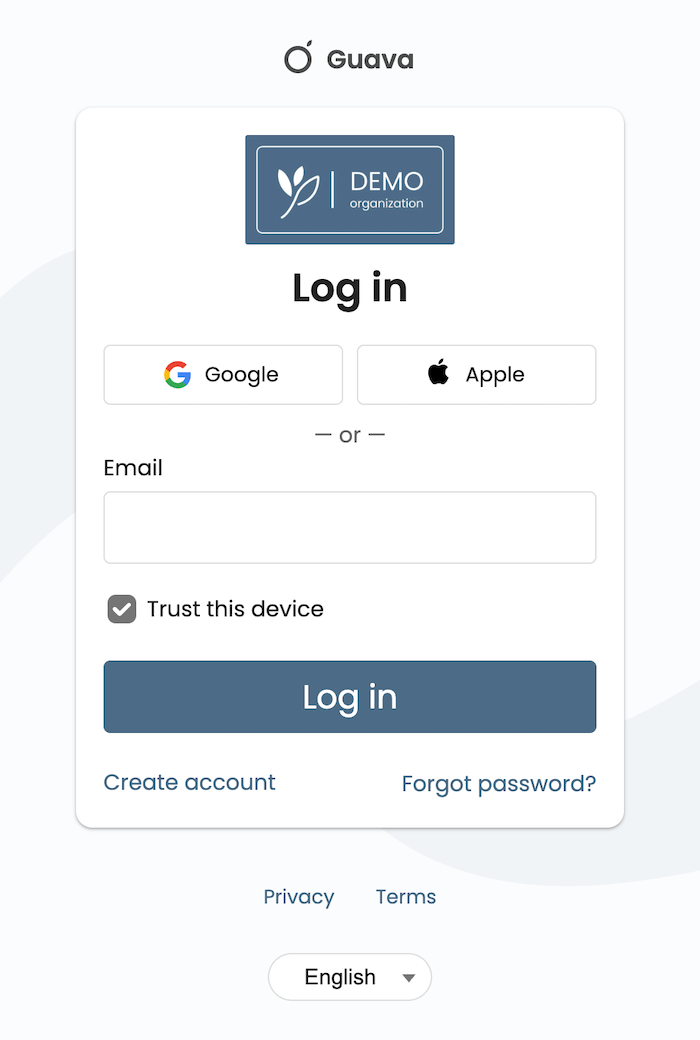
Link to Guava or your branded Guava login page directly on your clinic’s homepage and in the main navigation menu. This gives patients a frictionless way to find and access their accounts.
If you’d like a branded login page and don’t yet have one, contact the team.
Incorporate Guava into your intake process.
Add a brief section about the portal to your new patient intake forms, including a checkbox where patients can consent to receive their digital invitation.
Use physical reminders in your clinic.
Place Guava flyers at the front desk or in the waiting room. This familiarizes your patients with the app before their appointment even begins.
If you’d like materials for printouts, reach out to the team and we’ll be happy to provide them.
Make Sure Your Team Is Aligned
Ensure that every staff member understands what Guava is and can help patients access it. Staff should also be able to answer the following questions:
- What is Guava, and how can patients use it?
Guava is a secure tool that allows patients to view and manage all their personal health data in one place. By using Guava with our practice, they’re allowing their provider to access more information that can help guide their care, whether that be wearable data, medical records from other facilities, symptom-tracking data, or any other information stored in Guava. Patients can use it to explore correlations among different health factors, ask the secure AI assistant about their medical data, view labs with user-friendly explanations, prepare for visits, and more.
- Where can patients find the link to log in to Guava?
Once patients accept their email invite from your practice, they can log in to Guava via the app on iOS or Android, or via the web at guavahealth.com/login.
If your practice has a branded login page, it should be posted somewhere patients can easily access from your website or other communication channels. The URL will look something like the following: guavahealth.com/login/your-practice-name.
- Which features are most relevant to our patient population?
This will depend on your practice and how you intend to use Guava with your patients.
- How can I help patients sign up on the spot?
If they’ve already been sent an invite, direct them to their email inbox. You can double-check this by going to the Patients tab on your practice’s Provider Dashboard homepage. By searching the name of the patient, you can see if they’ve been sent an invitation. If they haven’t been added, select + Add Patient and enter their preferred email address.
- Is Guava HIPAA-compliant?
Yes. Guava is 100% HIPAA-compliant and data is secured and encrypted using industry standard encryption algorithms. Data is safeguarded from unauthorized access and tampering and is never shared without user permission. Learn more about privacy and security here.
A short internal walkthrough can go a long way in building confidence and consistency across your team. To get everyone aligned, consider:
- Scheduling a brief (10–15 minute) overview during a team huddle
- Sharing your branded link in your internal chat or bulletin board
- Running through a mock patient sign-up so staff understand the experience firsthand
- Reviewing dashboard roles and responsibilities so expectations are clear
Doing these things will make sure that any patient-facing staff member is able to introduce Guava and help a patient take the first step.
Set Up Your Team
Next, make sure that your practice’s Provider Dashboard is accessible to the right people.
- Add all relevant clinical and administrative staff to the dashboard
- Assign appropriate roles and permission levels based on responsibilities
- Confirm each team member can log in and navigate the platform
- Make sure administrative staff know how to add and manage patients
When roles and permissions are set up correctly, your team can share responsibility for messaging, reviewing data, and managing patient communication.
Resources to Share with Your Patients
Once your team is prepared, the next step is guiding patients through their first interactions with Guava. The biggest barrier to adoption is overwhelm. The goal isn’t to teach patients everything at once, but to help them feel confident getting started.
Direct patients to a simple onboarding resource:
Getting Started with Guava Through Your Provider →
You can also share additional guides as needed:
Questions? We're Here to Help
If you have any questions about getting set up, need support with onboarding, or want to request branded materials like a custom login page or print-ready flyers, don't hesitate to reach out. We're happy to help you make the most of Guava for your practice and your patients.
Contact us at [email protected]